Quick Guide
A quick overview of the Beat Editor features and how to use them.
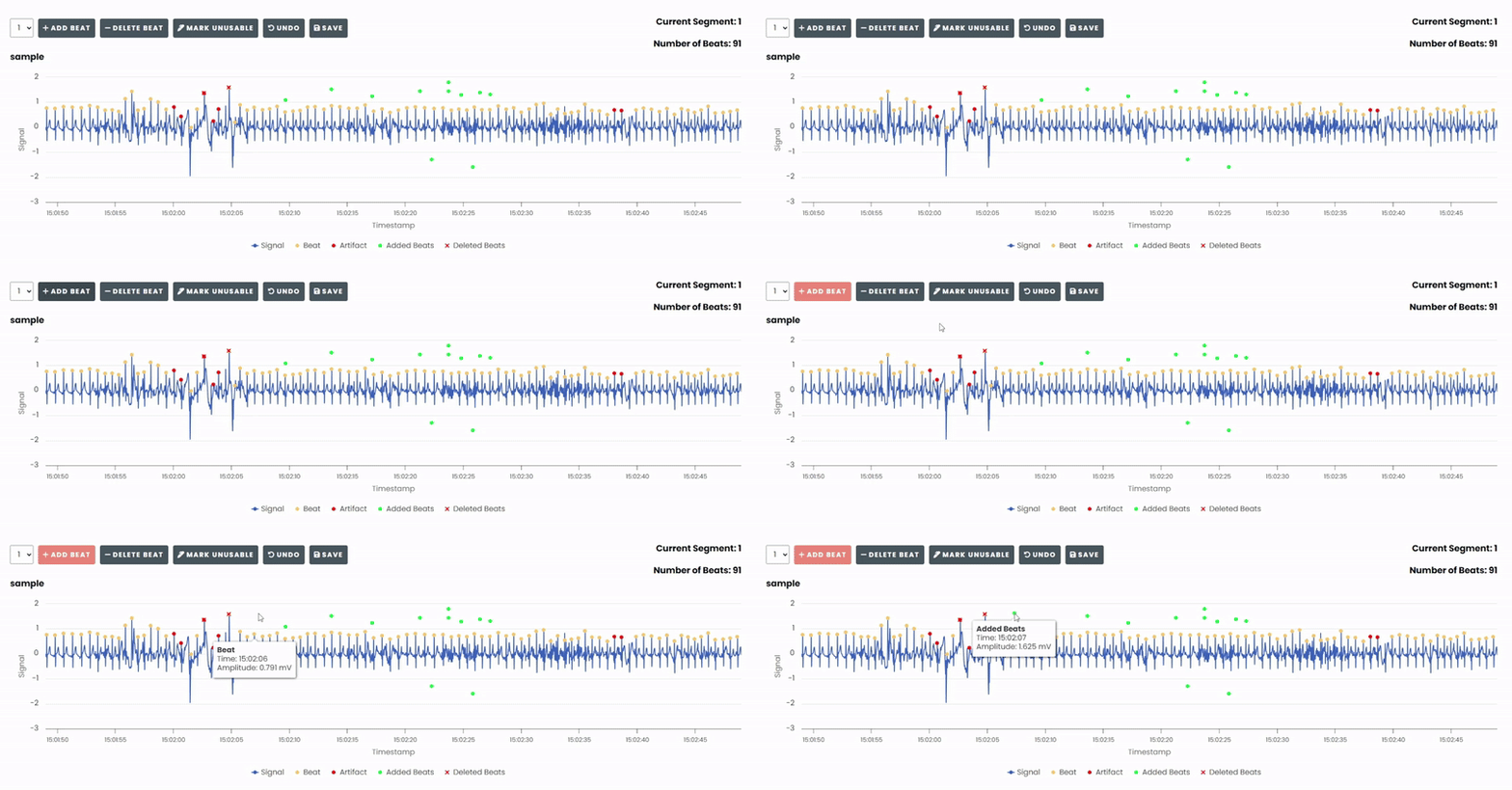
Add Beat
To add a new beat to the chart, click Add Beat and click on the desired position in the chart.
A new beat will be created at that position.
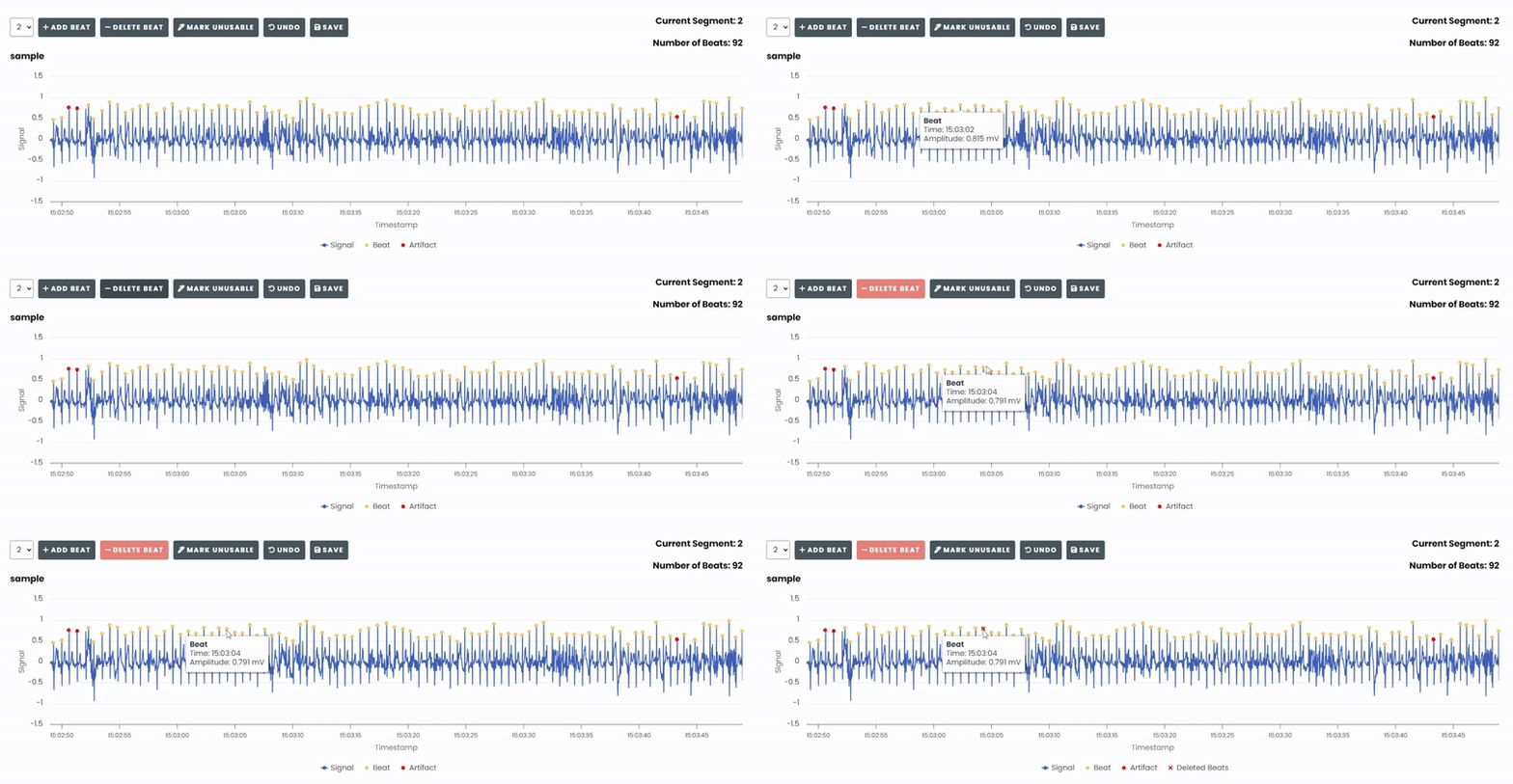
Delete Beat
To delete a beat from the chart, click Delete Beat and select the beat. The selected beat will be removed from the chart.
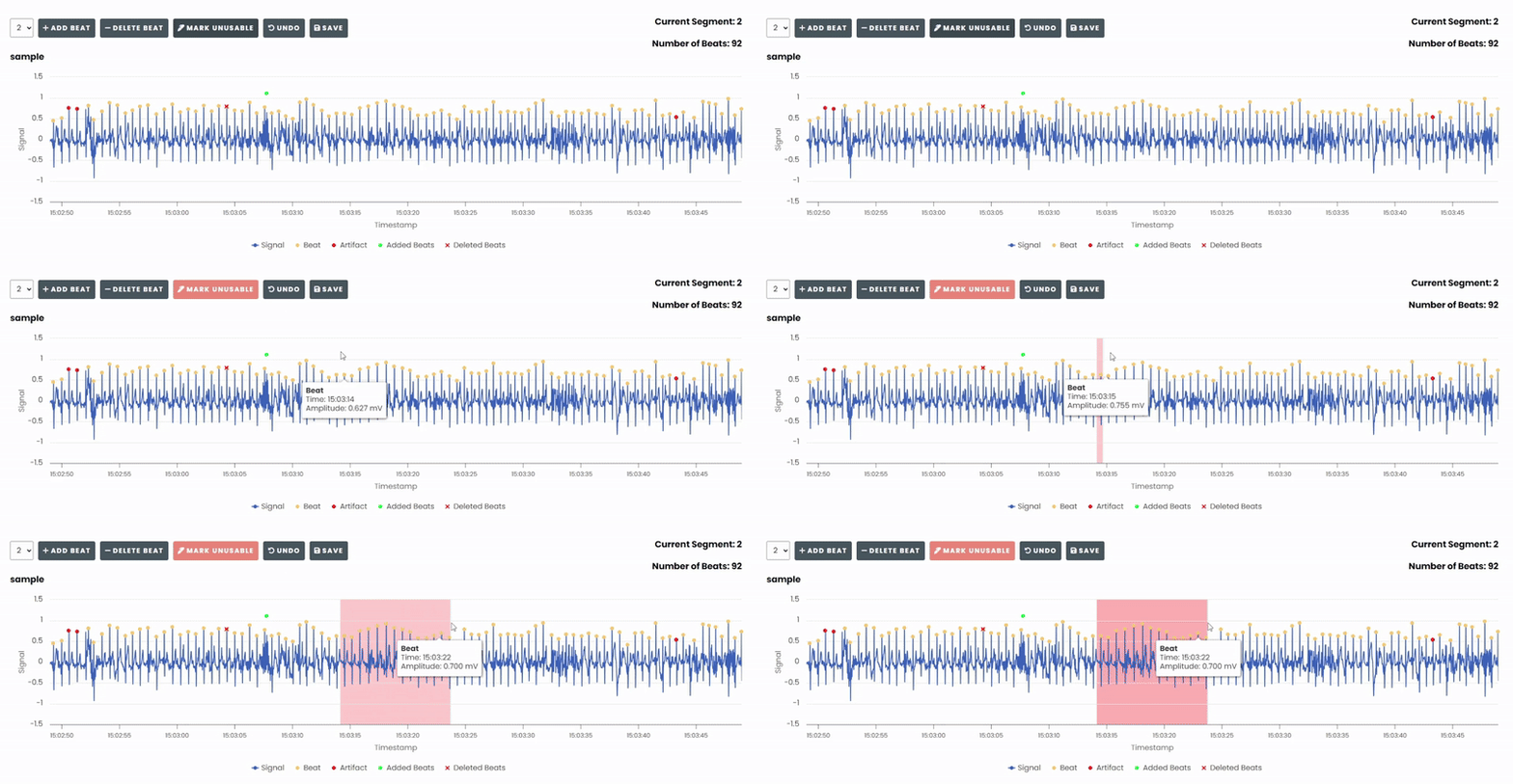
Mark Unusable
To mark an area of the chart as unusable, click Mark Unusable and select the area.
Undo
To undo an action, the mode in which it was performed must be activated first.
Undo a beat insertion
Click on
Add Beat.Click
Undo.
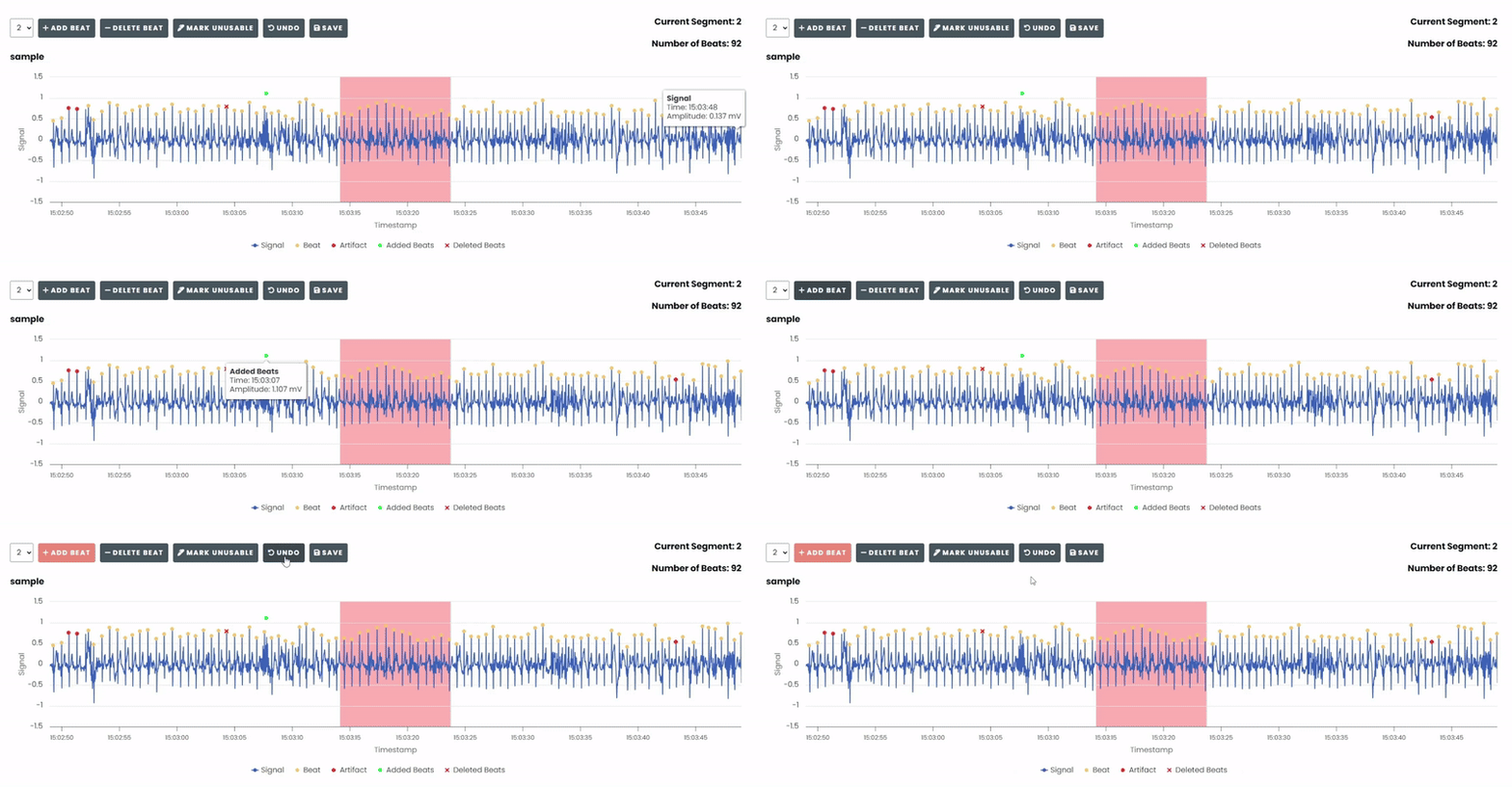
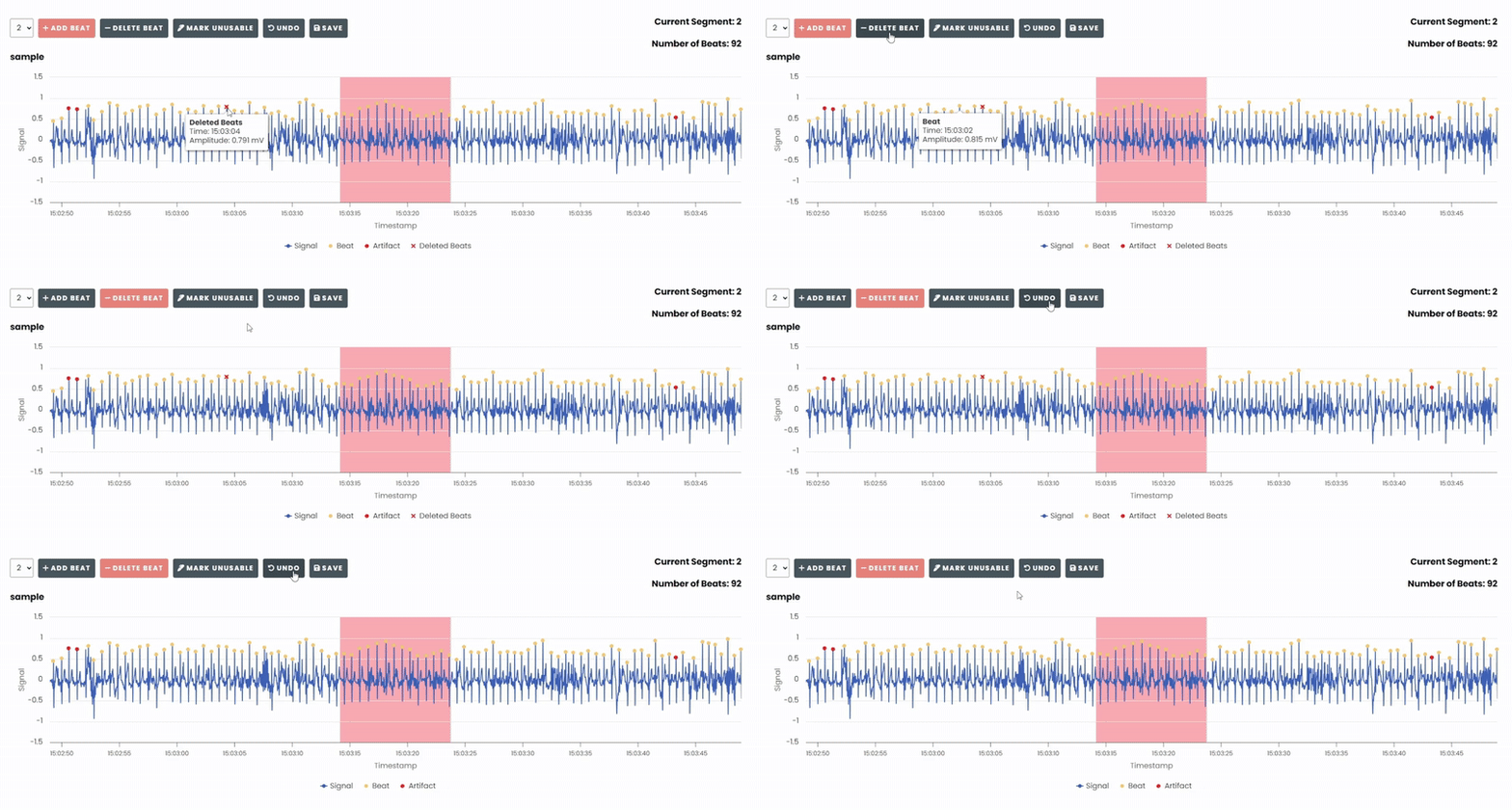
Undo a beat deletion
Click on
Delete Beat.Click
Undo.
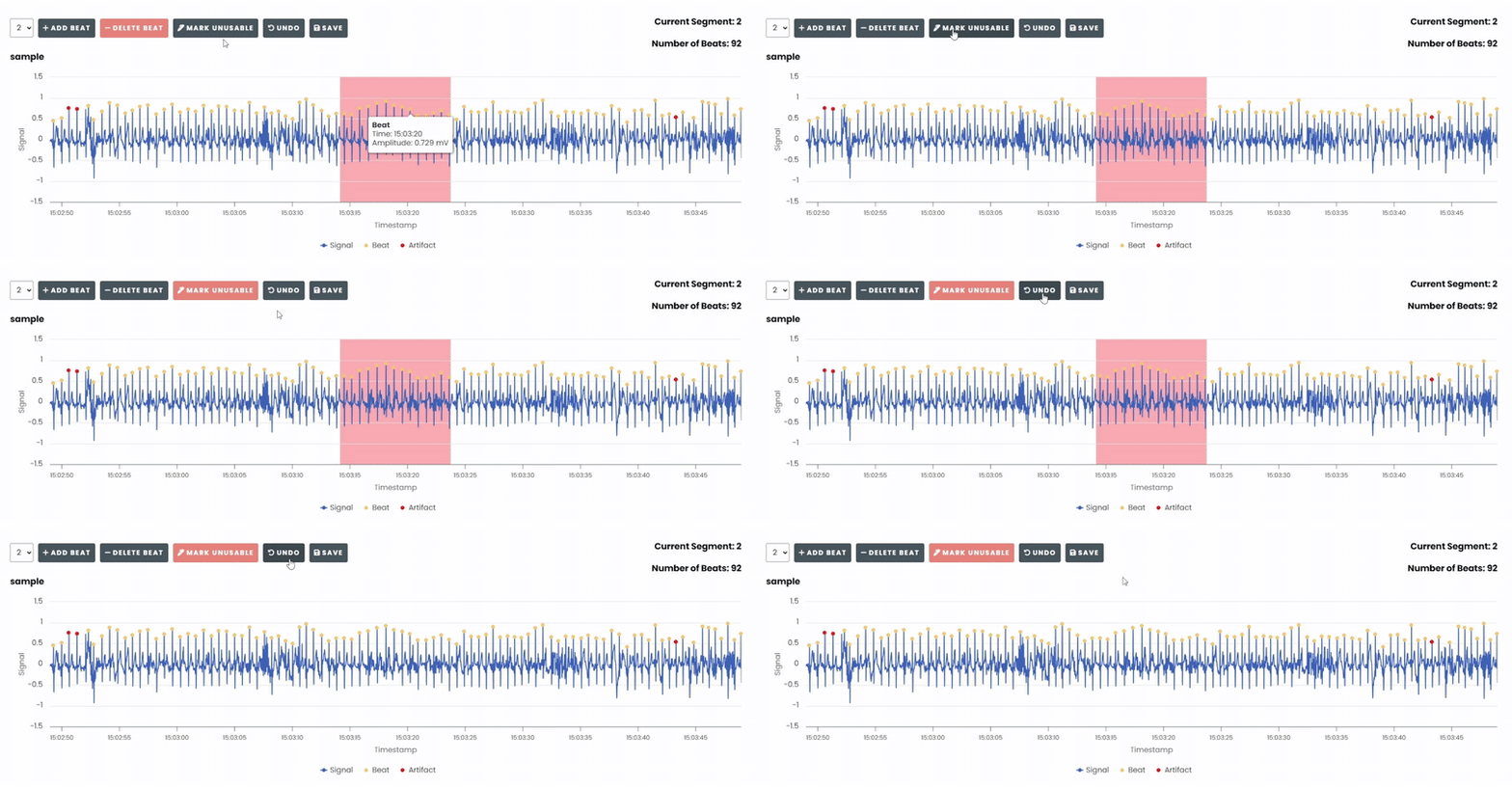
Undo an ‘unusable’ marking
Click on
Mark Unusable.Click
Undo.
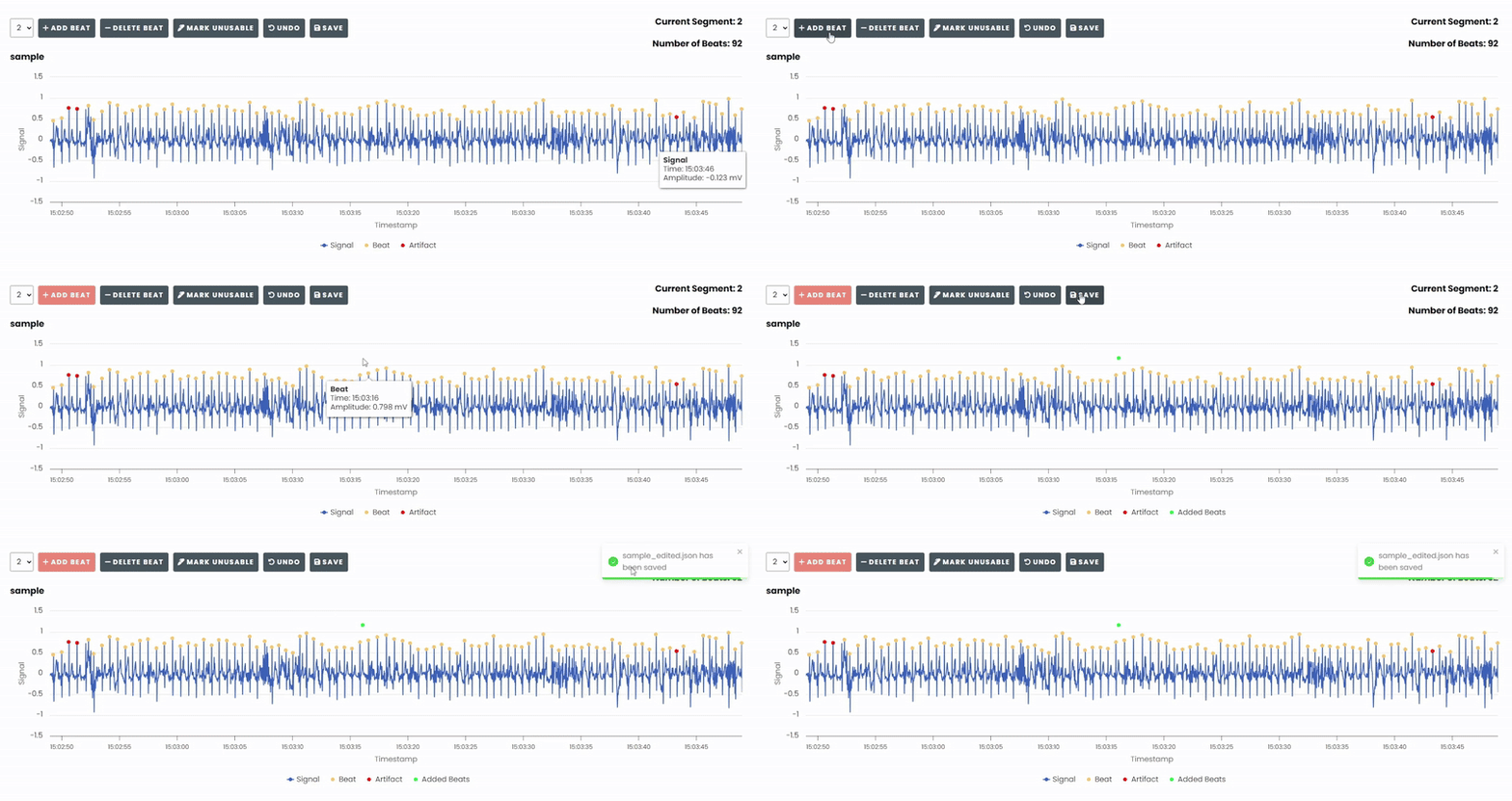
Save
To save changes, click the Save button after making edits. This will
save the current state of the chart to the server.
Zoom
To zoom in and out of the chart, use the Mouse Wheel or Drag-Select.
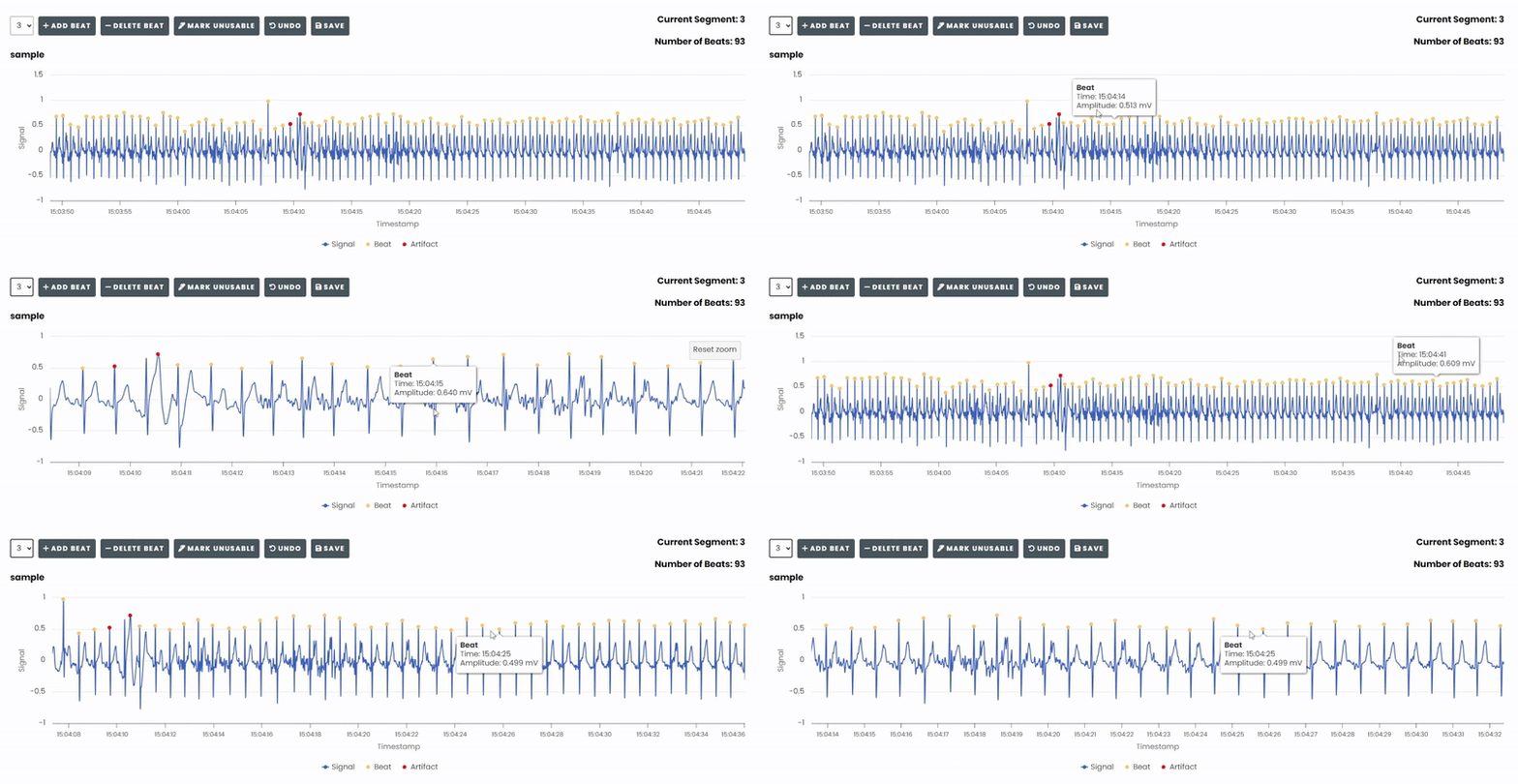
Panning
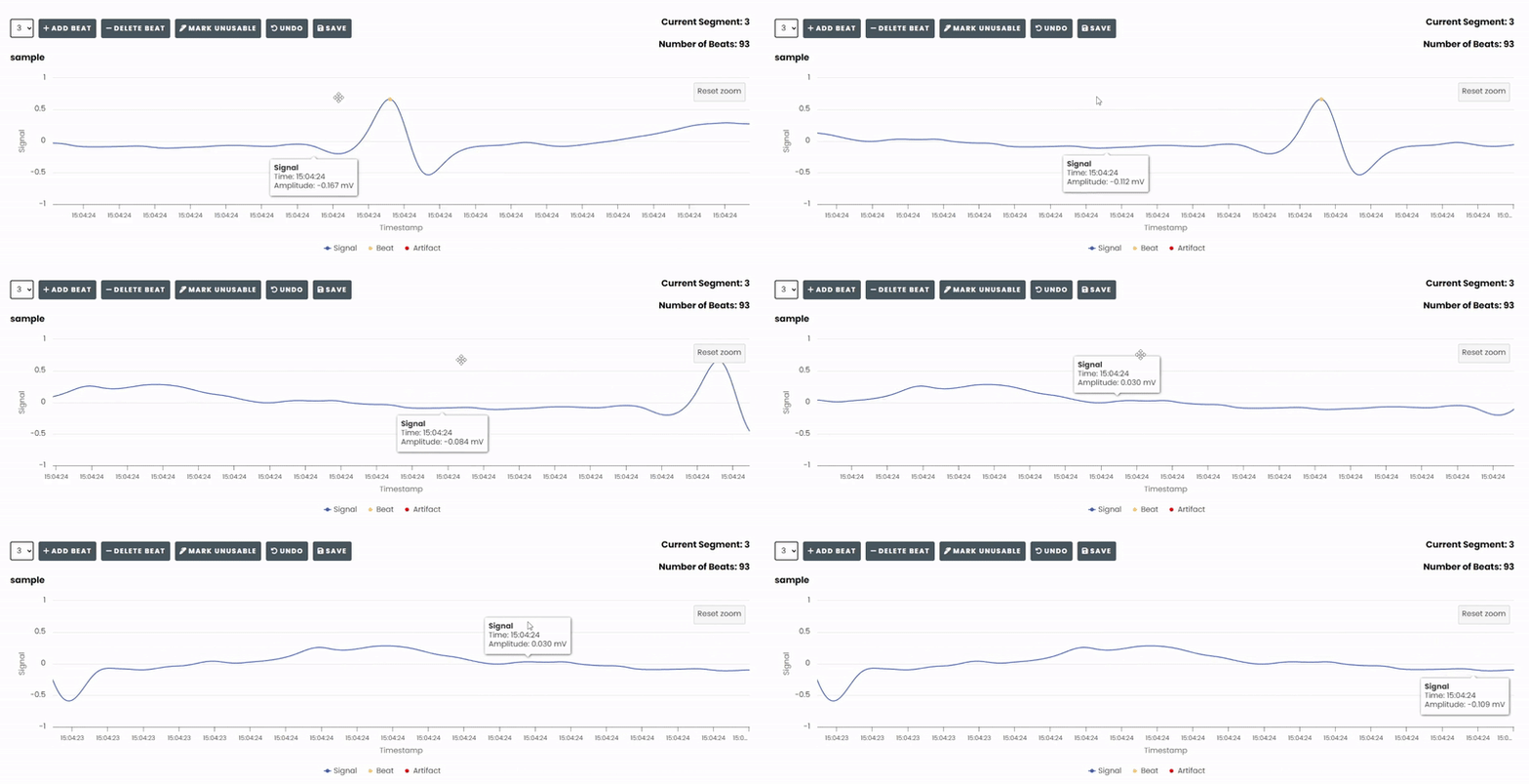
To pan over the chart, hold down the Shift Key and then click and drag with the mouse.
Keyboard Shortcuts
The Beat Editor supports several keyboard shortcuts to enhance workflow:
A - Add a new beat.
D - Delete the selected beat.
U - Mark the selected beat as unusable.
CTRL + Z OR ⌘ + Z (For Mac Users) - Undo the last action.
SHIFT + Left Mouse Click - Pan over the chart.
Mouse Wheel OR Drag-Select - Zoom in and out of the chart.